Dan Baruch · · 6 min read
Home Base: A Calm Home Screen for the Family TV, and How to Build Your Own
Read aloud
Our living room TV now opens to our family's own home screen: kids YouTube limited to channels we chose, the calendar, the weather, to-dos and a few TV games. Here's what you need to build one, the prompts, and starter code.
The default Google TV home screen is built to keep you watching. It's a wall of autoplaying trailers, recommendations and Shorts, and my kids would land on something I never picked within two clicks. I didn't want a stricter version of that screen. I wanted a different screen: one that shows what the family actually needs, and plays only what we chose.
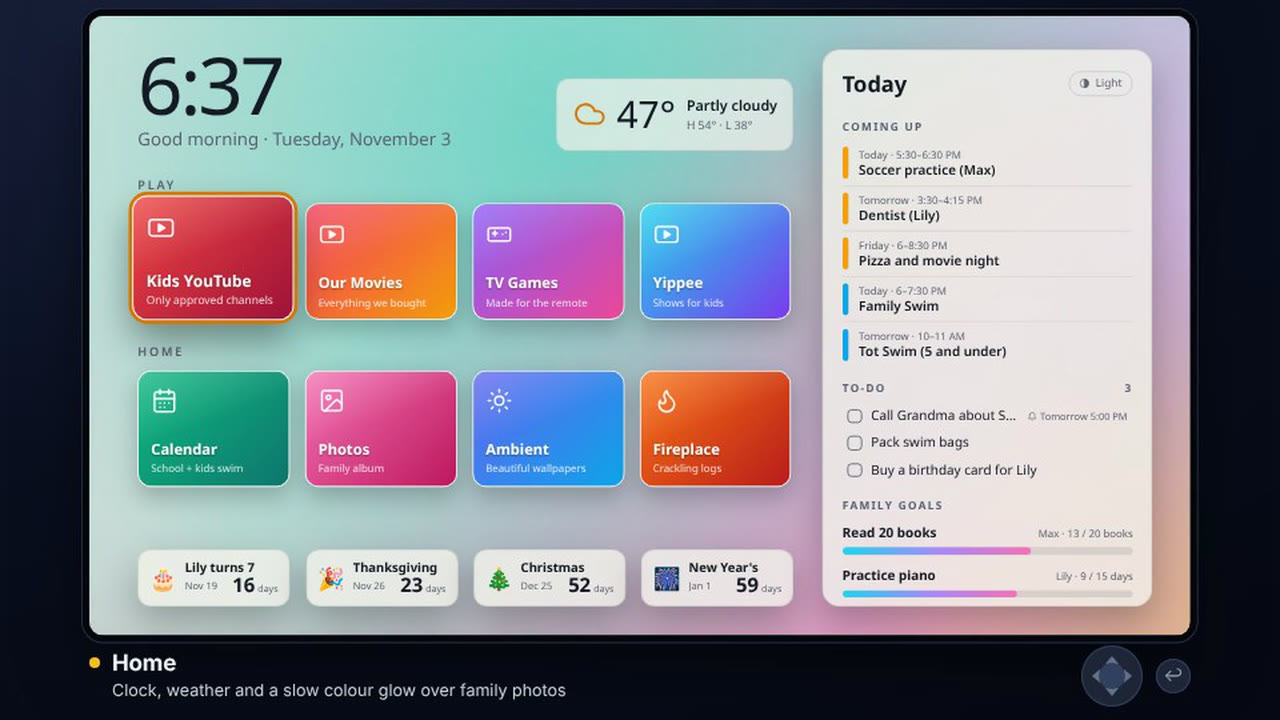
So I built Home Base with my AI agents, over about two days. It's a small TV app and a small server that runs on a computer in the house. The TV turns on to a clock, the weather, today's family events and to-dos, and a row of tiles. Kids YouTube shows only the channels our family account subscribes to: no Shorts, no search box, no comments, no suggestions when a video ends. There are 15 TV games built for the remote, a fireplace, ambient wallpapers, family photos, countdowns to birthdays and holidays, and a phone app to add a to-do or a reminder that pops up on the TV.
It only works at home. The server refuses anyone who isn't on the home Wi-Fi, and the phone reaches it from anywhere else over Tailscale.
Here's how to build your own.
What you need
Nothing here costs money beyond hardware you probably already have.
| What | Why |
|---|---|
| A Google TV device | We use a Chromecast with Google TV (4K). Any Android TV device with Developer options should work. |
| An always-on computer at home | Runs the server. An old desktop or a mini PC is plenty; ours runs with a 256 MB memory cap. |
| A Google Cloud project (free) | Google sign-in from the TV, and the YouTube Data API for your subscription list. Both fit the free quota easily. |
| A free Tailscale account | Lets your phone reach the server when you're away from home, without opening anything to the internet. |
| Android Studio or the Android SDK | Builds the small TV app once. After that, new features ship from the server. |
| Node 22 or newer | Runs the server (Express, and SQLite through Node's built-in node:sqlite). |
| An AI coding agent | Claude Code, Codex or similar. It writes nearly all of the code from the prompts below. |
On the TV, turn on Developer options (Settings, System, About, then press the Android TV OS build seven times) and switch on Wireless debugging for the first install. Turn it back off afterwards.
In Google Cloud, create an OAuth client of type "TVs and Limited Input devices", keep the consent screen in Testing, and add your family's Google accounts as test users. Enable the YouTube Data API v3. The client ID and secret go in an environment file on the server, never in the code.
How it fits together
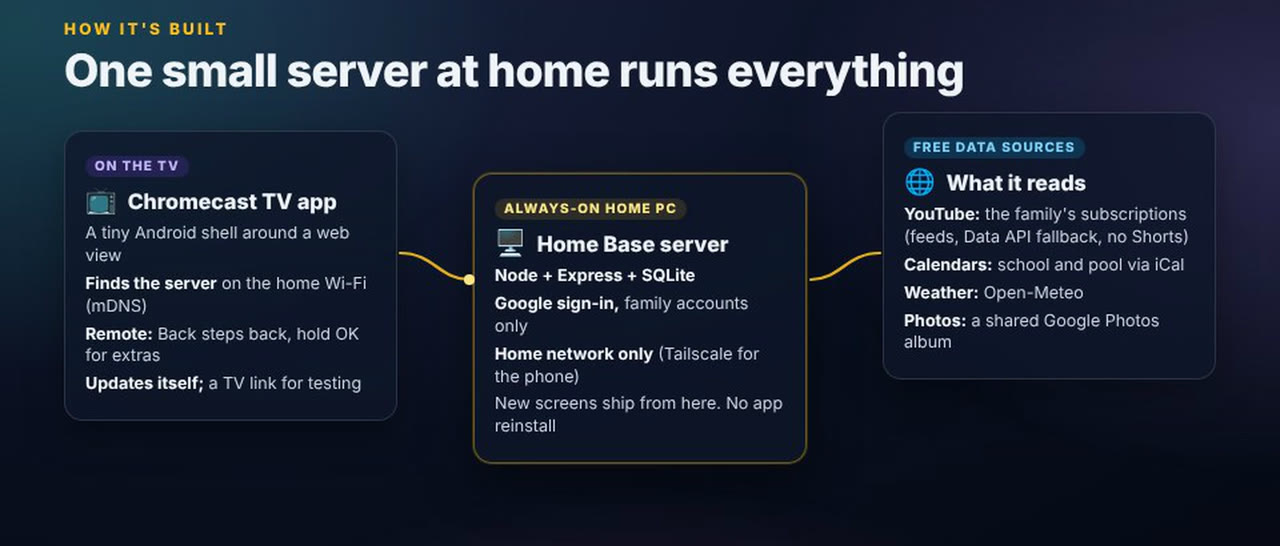
- The TV app is a shell. It's a tiny Android app with one full-screen WebView. It finds the server on the Wi-Fi with mDNS, loads its home page, and handles the remote's Back button. That's nearly all it does, so it rarely needs reinstalling.
- The server does the work. Node, Express and SQLite on the home computer. It serves the home screen, the apps and the games as plain web pages, and stores to-dos, events, countdowns and the YouTube catalogue. Adding something to the TV means adding a tile to a JSON file on the server.
- The data is free. YouTube's public channel feeds, plus the Data API for your subscription list. Calendars come from public iCal links (school, a pool schedule, your own Google Calendar). Weather is Open-Meteo, which needs no key. Photos come from a shared Google Photos album.
- The phone app is a web app. It's served by the same server and installed from Chrome to the home screen. It needs HTTPS to install, which Tailscale Serve provides.
Sign-in works like any TV app: the TV shows a code and a QR, you approve it on your phone, and only the Google accounts on your list get a session.
The prompts, in order
These are the pieces and the decisions that matter. A good agent can take several at once, or all of them as a brief; swap in your own details where it says so.
1. The server, home network only
Create a Node 22 + Express server for a family TV home screen called Home Base.
Use SQLite through node:sqlite, ES modules, no build step, no frontend framework.

- It must only answer requests from an allowlist of IPv4 CIDRs in ALLOW_CIDRS
  (default: my home LAN 192.168.1.0/24 plus 127.0.0.1/32). Everyone else gets 403.
  Listen on IPv4 only.
- GET /health returns {ok:true}.
- Google sign-in with the OAuth device flow (client type "TVs and Limited Input
  devices"): the TV shows the user code and a QR of the verification URL, polls,
  verifies the ID token (audience, issuer, expiry, email_verified) and only lets
  in emails listed in ALLOWED_EMAILS. Sessions: random 256-bit token stored hashed,
  HttpOnly SameSite=Lax cookie.
- Security headers: a strict CSP, X-Frame-Options DENY, nosniff, no-referrer.
- Secrets come from an env file outside the repo. Never log them.
- Tests with node --test for the allowlist, sign-in and sessions.
2. The TV app shell
Create a minimal Android TV app (Java, no Kotlin, no AndroidX) called Home Base:
one Activity with a full-screen WebView, landscape, immersive, keep screen on,
shown in the Google TV launcher (LEANBACK_LAUNCHER, banner image).

- Find the server: try the last address that worked, then mDNS discovery of
  _homebase._tcp with NsdManager (hold a Wi-Fi multicast lock), then a default
  address. Check each with GET /health. Show a friendly "only works on the home
  Wi-Fi" screen if nothing answers; OK retries.
- Back: ask the page first with window.hbBack(); if it returns true the page
  handled it. Otherwise go back in history, and at the home page exit the app.
- Top-level navigation is limited to the server and an allowlist of https hosts
  the server returns from /api/nav-allow. No JavaScript bridge to Android.
- Allow cleartext http (the server is on the LAN by IP).
- Also give me an Avahi service file that advertises _homebase._tcp on the server.
3. The home screen
Build the Home Base launcher page the TV loads, designed for a 1920x1080 WebView
driven only by a remote (arrows, OK, Back). Size everything in vw from 960px wide.

- Top: a big clock and date, and current weather from Open-Meteo (no key).
- Rows of tiles read from server/tiles.json (title, subtitle, icon, URL, gradient).
  Adding a tile must not need a new TV app.
- A Today panel: family events, to-dos, and countdowns to birthdays and holidays.
- Spatial focus navigation between [data-nav] elements, a clearly visible focus
  ring, Up/Down/Left/Right going where the eye expects.
- Light and dark mode plus auto (light by day, dark after sunset).
- After 5 idle minutes, a photo screensaver.
Follow the TV performance rules I'll paste next.
4. Kids YouTube
Add Kids YouTube to Home Base.

- The allowlist is the channels our family YouTube account subscribes to. Sync it
  with a one-time youtube.readonly grant through the same device-flow sign-in.
  Store the refresh token encrypted at rest. Re-sync every 6 hours.
- For each channel, list regular videos only, never Shorts: read the videos-only
  uploads feed (playlist UULF + channel ID without its "UC") and the channel feed
  minus /shorts/ links, merged and newest first. Fall back to the Data API
  playlistItems if both feeds fail. Keep the last good list per channel on disk,
  because the feeds fail in streaks.
- Our own grid: Latest, Channels, Favorites. No search, no YouTube home feed.
- Play in the YouTube embedded player inside our page, captions off. When a video
  ends, show our own Up next from the same allowlist, never YouTube's suggestions.
- The server checks every video ID against the allowlist before it plays.
- Back steps up one level: video, channel, Latest, home.
5. Calendars and weather
Add a Calendar app and feed the home screen's Today panel.

- Read public iCal feeds listed in server/calendars.json (school, activities,
  a pool schedule), plus family events stored in SQLite. Handle repeating events
  and all-day events. Cache feeds and keep them warm every 20 minutes so pages
  never wait on Google.
- Calendar view: columns side by side for the next 8 weeks, scrolled with the remote.
- Weather app: now, hourly and 7 days from Open-Meteo, plus a rain radar.
6. The phone companion over Tailscale
Add a phone web app at /m/ for Home Base, installable from Chrome (manifest,
icons, service worker): to-dos, family events, reminders that pop up on the TV
at a set time (OK dismisses), countdowns, family goals, and Kids YouTube
favorites with "Play on TV".

- The phone signs in with a 'manage' session; the TV's session stays view-only.
- Away from home the phone reaches the server only over Tailscale. Put it behind
  `tailscale serve` for HTTPS. Requests relayed by Tailscale Serve come from
  localhost with X-Forwarded-For: believe that header only then, and check the
  real tailnet address against ALLOW_CIDRS (add only my phone's tailnet IP).
- Admin routes must never work through the proxy.
7. TV games
Build a TV games hub for Home Base: big text, low reading load, forgiving Easy
modes, nothing that feels mean when you lose. For kids aged about 5 to 8 and adults.

- Start with Snake, Memory Match, Connect Four, Bowling and a simple platformer,
  1 to 4 players where it fits, all playable with arrows + OK + Back.
- A shared look and effects kit: particles, confetti, short sound effects.
  No screen shake.
- Optional: phones as controllers for a racing game, over a WebSocket room.
- Every game follows the TV performance rules and reports its frame rate to the
  server every 30 seconds while it runs on the TV.
8. The TV performance rules
Apply these rules to every Home Base page and game, then measure on the real TV
(not the desktop, which hides GPU problems):

- Target 30 fps. Assume a small GPU, 2 GB RAM and a 1920x1080 WebView.
- No backdrop-filter, no CSS filter on anything that animates, no mix-blend-mode
  on large layers. Use solid see-through tints instead of blur.
- Few, small composited layers. Paint big soft glows into a tiny canvas
  (about 192x108) and stretch it over the screen.
- Game canvases at 1.25x device pixels, not 2x. Pre-render static art once.
- Redraw only when something changed. No shadowBlur per frame. Cap particles.
- Fixed sizes for repeated cards so lists scroll by whole rows.
Starter code
These are the parts worth getting right first. They're trimmed and generic: rename things, and swap the example addresses and IDs for your own.
Home network only (Express)
// net.js: IPv4 CIDR allowlist. IPv6 is refused; the server listens on IPv4 only.
export function parseCidrs(spec) {
  return spec.split(',').map((s) => s.trim()).filter(Boolean).map((c) => {
    const [ip, bits = '32'] = c.split('/');
    const n = Number(bits);
    return { base: toInt(ip), mask: n === 0 ? 0 : (~0 << (32 - n)) >>> 0 };
  });
}

export function ipAllowed(remote, cidrs) {
  if (!remote) return false;
  const n = toInt(remote.startsWith('::ffff:') ? remote.slice(7) : remote);
  if (n === null) return false;
  return cidrs.some((c) => ((n & c.mask) >>> 0) === ((c.base & c.mask) >>> 0));
}

function toInt(ip) {
  const parts = String(ip).split('.');
  if (parts.length !== 4) return null;
  let n = 0;
  for (const p of parts) {
    if (!/^\d{1,3}$/.test(p) || Number(p) > 255) return null;
    n = n * 256 + Number(p);
  }
  return n >>> 0;
}
// server.js: the first middleware. Tailscale Serve relays from localhost with the
// real tailnet address in X-Forwarded-For, so only then is that header believed.
import express from 'express';
import { ipAllowed, parseCidrs } from './net.js';
const cidrs = parseCidrs(process.env.ALLOW_CIDRS || '192.168.1.0/24,127.0.0.1/32');
const LOCAL = ['127.0.0.1', '::ffff:127.0.0.1', '::1'];
const app = express();
app.set('trust proxy', false);
app.use((req, res, next) => {
const direct = req.socket.remoteAddress;
const fwd = String(req.get('x-forwarded-for') || '').split(',').map((s) => s.trim()).filter(Boolean).pop();
req.viaProxy = LOCAL.includes(direct) && Boolean(fwd);
req.clientIp = req.viaProxy ? fwd : direct;
if (ipAllowed(req.clientIp, cidrs)) return next();
res.status(403).type('text').send('Home Base only works on the home network.');
});
app.get('/health', (req, res) => res.json({ ok: true }));
app.listen(Number(process.env.PORT || 8080), '0.0.0.0');Letting the TV find the server (Avahi, Linux)
<?xml version="1.0" standalone='no'?>
<!DOCTYPE service-group SYSTEM "avahi-service.dtd">
<!-- /etc/avahi/services/homebase.service -->
<service-group>
  <name>Home Base</name>
  <service protocol="ipv4">
    <type>_homebase._tcp</type>
    <port>8080</port>
  </service>
</service-group>
On a Mac, dns-sd -R "Home Base" _homebase._tcp local 8080 does the same while it runs.
The TV app shell (Android, Java)
// MainActivity.java (essentials). Full screen WebView, finds the server, Back asks the page first.
public class MainActivity extends Activity {
    private static final String SERVICE_TYPE = "_homebase._tcp.";
    private static final String DEFAULT_SERVER = "http://192.168.1.10:8080"; // your server
    private WebView web;
    private String server;
    private final Set<String> allowHosts = new HashSet<>(); // filled from /api/nav-allow

    @Override protected void onCreate(Bundle b) {
        super.onCreate(b);
        getWindow().addFlags(WindowManager.LayoutParams.FLAG_KEEP_SCREEN_ON);
        web = new WebView(this);
        WebSettings s = web.getSettings();
        s.setJavaScriptEnabled(true);
        s.setDomStorageEnabled(true);
        s.setMediaPlaybackRequiresUserGesture(false);
        // YouTube gives Android WebViews 480p; a desktop Chrome user agent gets full quality.
        Matcher cv = Pattern.compile("Chrome/[\\d.]+").matcher(s.getUserAgentString());
        s.setUserAgentString("Mozilla/5.0 (X11; Linux x86_64) AppleWebKit/537.36 (KHTML, like Gecko) "
                + (cv.find() ? cv.group() : "Chrome/120.0.0.0") + " Safari/537.36 HomeBaseTV/1");
        web.setWebViewClient(new WebViewClient() {
            // Kids can't wander off: only the server and allowlisted https hosts.
            @Override public boolean shouldOverrideUrlLoading(WebView v, WebResourceRequest r) {
                if (!r.isForMainFrame()) return false;
                Uri u = r.getUrl();
                if (server != null && server.equals(u.getScheme() + "://" + u.getAuthority())) return false;
                if (!"https".equals(u.getScheme()) || u.getHost() == null) return true;
                for (String h : allowHosts) if (u.getHost().equals(h) || u.getHost().endsWith("." + h)) return false;
                return true;
            }
        });
        setContentView(web);
        discover();
    }

    private void discover() {
        NsdManager nsd = (NsdManager) getSystemService(Context.NSD_SERVICE);
        WifiManager wifi = (WifiManager) getApplicationContext().getSystemService(Context.WIFI_SERVICE);
        WifiManager.MulticastLock lock = wifi.createMulticastLock("homebase");
        lock.acquire();
        nsd.discoverServices(SERVICE_TYPE, NsdManager.PROTOCOL_DNS_SD, new NsdManager.DiscoveryListener() {
            @Override public void onServiceFound(NsdServiceInfo info) {
                nsd.resolveService(info, new NsdManager.ResolveListener() {
                    @Override public void onServiceResolved(NsdServiceInfo i) {
                        String url = "http://" + i.getHost().getHostAddress() + ":" + i.getPort();
                        // check GET /health off the main thread, then: runOnUiThread(() -> open(url));
                    }
                    @Override public void onResolveFailed(NsdServiceInfo i, int code) { }
                });
            }
            @Override public void onStartDiscoveryFailed(String t, int c) { /* fall back to DEFAULT_SERVER */ }
            @Override public void onStopDiscoveryFailed(String t, int c) { }
            @Override public void onDiscoveryStarted(String t) { }
            @Override public void onDiscoveryStopped(String t) { }
            @Override public void onServiceLost(NsdServiceInfo i) { }
        });
        // also: a 6 second timeout that tries DEFAULT_SERVER, then shows "only works on the home Wi-Fi"
    }

    private void open(String url) { server = url; web.clearHistory(); web.loadUrl(url + "/"); }

    @Override public boolean dispatchKeyEvent(KeyEvent e) {
        if (e.getKeyCode() != KeyEvent.KEYCODE_BACK) return super.dispatchKeyEvent(e);
        if (e.getAction() == KeyEvent.ACTION_UP) {
            // The page gets the first say: return true from window.hbBack() to handle Back yourself.
            web.evaluateJavascript("(function(){try{return window.hbBack&&window.hbBack()?1:0}catch(x){return 0}})()", r -> {
                if ("1".equals(r)) return;
                String u = web.getUrl();
                if (server == null || (server + "/").equals(u)) finish();
                else if (web.canGoBack()) web.goBack();
                else open(server);
            });
        }
        return true;
    }
}
The manifest needs INTERNET, ACCESS_WIFI_STATE and CHANGE_WIFI_MULTICAST_STATE, a LEANBACK_LAUNCHER intent filter, a banner image, and a network security config that allows cleartext, because the server is plain http on the LAN. Build it, then install it once from your computer:
adb pair 192.168.1.50:PAIRING_PORT      # code shown under Wireless debugging on the TV
adb connect 192.168.1.50:DEBUG_PORT
adb install -r app/build/outputs/apk/release/app-release.apk
Kids YouTube: subscriptions only, no Shorts
// Regular videos for one allowed channel. channelId looks like "UC" + 22 characters.
// UULF + the rest of the ID is YouTube's videos-only uploads list (no Shorts).
const lastGood = new Map(); // persist this to SQLite: the feeds fail in streaks

export function parseFeed(xml) {
  return [...xml.matchAll(/<entry>([\s\S]*?)<\/entry>/g)].map(([, e]) => ({
    id: (e.match(/<yt:videoId>([\w-]{11})<\/yt:videoId>/) || [])[1],
    title: (e.match(/<title>([\s\S]*?)<\/title>/) || [])[1] || '',
    published: (e.match(/<published>([^<]+)<\/published>/) || [])[1] || '',
    short: ((e.match(/<link rel="alternate" href="([^"]+)"/) || [])[1] || '').includes('/shorts/'),
  })).filter((v) => v.id);
}

export async function channelVideos(channelId) {
  const feed = (q) => fetch('https://www.youtube.com/feeds/videos.xml?' + q, { signal: AbortSignal.timeout(10_000) })
    .then(async (r) => (r.ok ? parseFeed(await r.text()) : null)).catch(() => null);
  const [long, all] = await Promise.all([
    feed('playlist_id=UULF' + channelId.slice(2)),
    feed('channel_id=' + channelId),
  ]);
  if (!long && !all) return lastGood.get(channelId) || []; // then try the Data API's playlistItems
  const seen = new Set();
  const list = [...(all || []), ...(long || [])]
    .filter((v) => !v.short && !seen.has(v.id) && seen.add(v.id))
    .sort((a, b) => b.published.localeCompare(a.published));
  lastGood.set(channelId, list);
  return list;
}
The allowlist itself comes from GET https://www.googleapis.com/youtube/v3/subscriptions?part=snippet&mine=true&maxResults=50 with a youtube.readonly token. Subscribe on YouTube and the channel shows up on the TV; unsubscribe and it's gone. Before playing anything, the server checks the video ID belongs to an allowed channel.
The phone, over Tailscale
Install Tailscale on the server and your phone, then give the server an HTTPS address on your tailnet:
sudo tailscale serve --bg 8080
# serves https://YOUR-MACHINE.YOUR-TAILNET.ts.net -> http://127.0.0.1:8080
Add only your phone's tailnet address (from tailscale status) to ALLOW_CIDRS, like 100.x.y.z/32. Every other device on your tailnet still gets 403, and nothing is open to the internet.
Keeping it running (systemd user unit)
# ~/.config/systemd/user/home-base.service
[Unit]
Description=Home Base (family TV home screen, LAN only)
After=network-online.target

[Service]
WorkingDirectory=%h/home-base/server
EnvironmentFile=%h/.config/home-base/home-base.env
Environment=NODE_ENV=production
ExecStart=/usr/bin/node server.js
Restart=on-failure
MemoryMax=256M
NoNewPrivileges=yes
UMask=0077
ProtectSystem=strict
ReadWritePaths=%h/home-base/data

[Install]
WantedBy=default.target
systemctl --user daemon-reload && systemctl --user enable --now home-base
loginctl enable-linger "$USER" # keep it running when nobody is logged inKeep the env file at mode 600. It holds GOOGLE_CLIENT_ID, GOOGLE_CLIENT_SECRET, ALLOWED_EMAILS and ALLOW_CIDRS.
Learnings so far
- The TV gives apps 30 frames a second, at most. The Chromecast outputs 4K at 60 Hz, but it paces apps at 30 frames a second even when the window asked for 60. Design for a 33 ms frame, and stop chasing 60.
- The desktop lies about performance. Every page ran at 60 fps on my computer. On the TV, the GPU is the bottleneck, and only measuring on the TV shows it. Have each page report its frame rate back to the server.
- Live blur is the expensive part. A blurred panel over an animated background made the home screen use a full CPU core and drop frames. Replacing several full-screen animated gradients with one tiny canvas, stretched, took Home from 23 to 30 fps.
- YouTube serves Android WebViews 480p. Even though the TV decodes 4K. A desktop Chrome user agent fixed it.
- YouTube's public feeds fail in streaks. One evening they failed for every channel at once. Keeping the last good list per channel on disk means the kids never see an empty screen.
- A channel's normal feed is only its 15 newest uploads. For a channel that posts lots of Shorts, that meant no regular videos at all. The videos-only uploads list fixed it.
Make the screen yours
Every parent I know worries about what their kids are watching on YouTube. This is the first thing I've used that actually answers it: the kids watch the channels we picked, and nothing else slips in. That alone made it worth building.
What surprised me is how good it feels to use. It's a calm, beautiful screen instead of a wall of ads, and pulling in the family calendar, the school schedule, a shared photo album and the weather makes the TV feel like part of the house, not a billboard. The kids ask for a new game and it shows up on the TV the next day.
That's the bigger point. With an AI agent and a computer at home, you're not stuck with the screen someone else designed. You can shape it to your family, and keep reshaping it as the kids grow. This is the first version, and so far it's been a real success in our house. If you try it, start small: one tile, the channels your kids already love, and the calendar. Then add the next thing your family asks for.